Desktop:X1 Nano
From RadonWiki
Windows 11 New Computer Setup December 2021/January 2022
Fresh Installs
Chrome - Version 96.0.4664.110 (Official Build) (64-bit)
KeePass 2.49
Eset NOD32 Antivirus 15.0.21.0
Microsoft 365 Apps for business (Word, Excel, Outlook etc. - installed via MCAS)
Google Workspace Sync for Microsoft Outlook (4.3.49.0)
Greenshot (Greenshot-RELEASE-1.2.10.6)
Notepad++ 64-bit 8.2
PuTTY - 64 Bit version 0.76
GIT - 2.34.1 (Accepted all defaults)
Wampserver32 3.5.3 (Use tool https://wampserver.aviatechno.net/files/tools/check_vcredist.exe to check pre-requisites)
MySQL Workbench 8.0.27 (Installed Client Tools Only, as WAMP Server installs MariaDB Server)
Restore Files
Map Network Drives to NAS (M:=\\radonnas\Multimedia, H:=\\radonnas\homes\Matt) - User:Admin
KeePass Database and Key (MCARTER.bkdx MCARTER.key)
Restore MYOB EXO Employee Services
Copy to directory C:\CLIENTS\_COMACC
Run File network
Setup - Special Options - Import - File Location C:\CLIENTS\_COMACC\
Setup - Backup Path - C:\CLIENTS\_BACKUP\MYOB_PAYROLL\
Install Quickbooks 2008/09 SP3
Apply Registry Fix - regfix_QB_Win10.reg
Restart Computer
Mount Image QB0809_SP3.iso
Run autorun.exe
...License Key: 85301-26735-37644-220162
...Install Quickbooks with the Company File Server
...Installs .NET 1.1
Run QuickBooks
...Select General Business
...Open an Existing Company File
...Activate Customer ID: 1247912
Can no longer activate license (as this version has been retired), but created script QB_Hack.ps1 to reset access
#Changes qbmode to the value as per installation, so can access QB 6 more times before activation
$file = Get-Content C:\Users\Public\Documents\Intuit\qbw.ini
($file).Replace($file.Get(1),'Qbmode=000063c07b28') | Out-File C:\Users\Public\Documents\Intuit\qbw.ini
Configure DEV Environment (GIT/WAMP/MariaDB/NetBeans)
Configure GIT
  SSH Public/Private Key added to GIT Server
  ssh-keygen –t rsa –C "matt.carter@radon.nz"
  Accept default name, and enter your own pass phrase
  This creates two files in folder ~/.ssh/
    id_rsa (private Key)
    id_rsa.pub (public key)
  id_rsa.pub copied to the gitolite-admin respository on the server as keydir/<username>.pub
  But copied files (id_rsa and id_rsa.pub) from old computer (to retain existing credentials)
  Create file ~/.ssh/config with the following
    Host git.radon.nz
    Hostname git.radon.nz
    Port 22
    User gitolite3
    UserKnownHostsFile ~/.ssh/known_hosts
  Clone Ticktock Repository
    mkdir /c/GIT
    cd /c/GIT
    git clone git.radon.nz:ticktock
 Configure WAMP
  Edit hosts file (C:\Windows\System32\drivers\etc\hosts) and add line "127.0.0.1 ticktock"
  Run WAMP and change PHP to version 5.6
  Edit httpd-vhosts.conf file (within wampserver) and add the following Virtual Hosts
<VirtualHost ticktock:80>
  ServerName ticktock
  ServerAlias ticktock
  DocumentRoot "C:/GIT/ticktock/app/webroot"
  <Directory "C:/GIT/ticktock/app/webroot">
    Options +Indexes +Includes +FollowSymLinks +MultiViews
    AllowOverride All
    Require local
  </Directory>
</VirtualHost>
Configure MariaDB
 Add MariaDB Bin path to PATH environmental (i.e. C:\wamp\bin\mariadb\mariadb10.4.13\bin\)
 Create database users for ticktock
mysql -uroot
create user 'ticktock'@'localhost' identified by 'ticktock';
create user 'ticktock_dev'@'localhost' identified by 'ticktock_dev';
create user 'ticktock_demo'@'localhost' identified by 'ticktock_demo';
grant all privileges on ticktock.* to 'ticktock'@'localhost';
grant all privileges on ticktock_dev.* to 'ticktock_dev'@'localhost';
grant all privileges on ticktock_demo.* to 'ticktock_demo'@'localhost';
grant select on ticktock.* to 'ticktock_dev'@'localhost';
grant select on ticktock.* to 'ticktock_demo'@'localhost';
Configure Ticktock and Test
 Edit hosts file (C:\Windows\System32\drivers\etc\hosts) and add line "127.0.0.1 ticktock"
 Create/Edit and run ~\_db\replication\replicate.bat (note need to run bin\plink.exe manually once to accept new remote host)
 Create/Edit ~\app\Config\database.php (Note: WAMP MariaDB rund on port 3307)
 Test http://ticktock/ and ensure working
Configure NetBeans
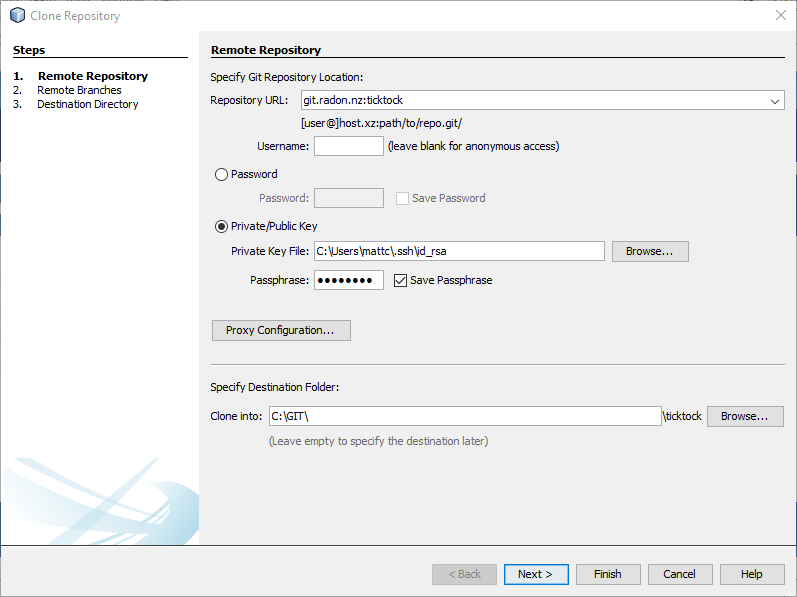
Clone GIT Respository, and then open Ticktock Project
Configure Browser to Chrome
Configure Project URL (http://ticktock)
Configure PHP Debugging (XDebug)
  Chrome - Enable Debug Extension
  WAMP - PHP.INI - Configure XDebug Extension
  NetBeans - ensure Web Root set in Project Properties to app/webroot